ALL MENU

IndiHome Applications Installation and Activation

IndiHome Applications

dummy

More applications in one service

Beyond fast internet, IndiHome offers various applications in one convenient service with easy installation, quick activation, and ready-to-enjoy home entertainment.

How to install streaming apps on MAXStream TV

  1. Open “Apps” menu and select MAXStream TV Apps Store.
  2. Choose the application.
  3. Click “Install” and wait until complete.
  4. Click “Open” to start using the application.

How to enjoy the streaming applications on IndiHome

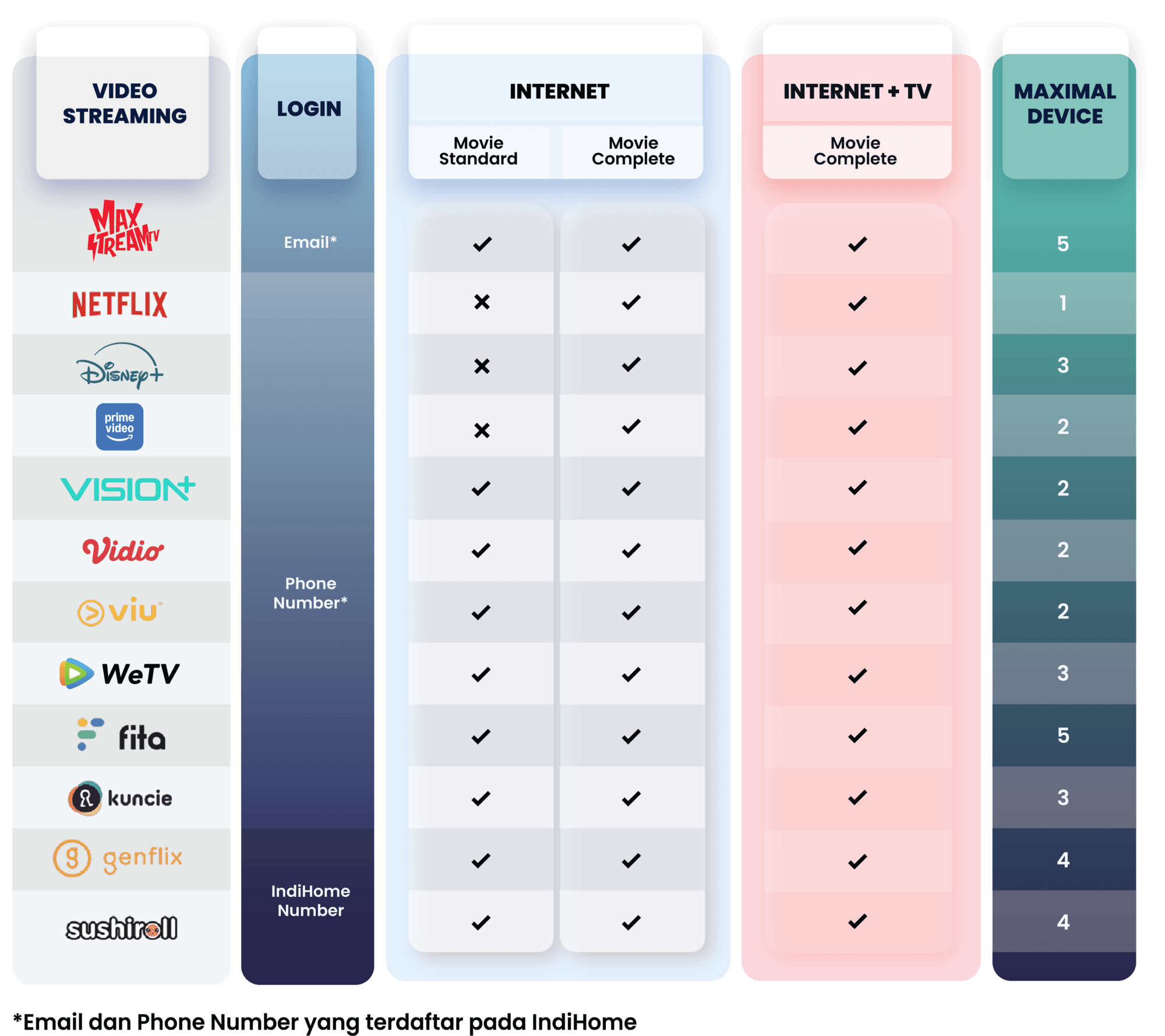
Netflix
icon-minus icon-plus
Netflix


Streaming Application Installation

  1. Click the activation link sent via SMS.
  2. A page appears containing information that Netflix is included in your IndiHome Package.
  3. Click the "Set Up Password" button, then create a password.
  4. The "Choose Package" page appears. Select "Basic" with Rp0 price information, then click "Continue with Basic".
  5. The "Let's Get You Watching" confirmation page appears. Click "Accept".
  6. Create a profile, select a language, and select 3 favorite contents.


Verify Mobile Number

  1. In the "Home" menu, click "Profile" in the upper right corner.
  2. Select the "Account" menu, then click "Security" to verify your mobile number.
  3. Next, you can log in using your mobile number to enjoy Netflix streaming services on the mobile app and website.


How to watch via IndiHome TV (STB)

  1. For content that can be enjoyed via STB, only bundling packages are available, one of which is IndiHome Movie Complete.
  2. On the left TV screen, select the "Apps" menu.
  3. Swipe right on the "All Apps" row, select the Netflix application and click "OK".
  4. Open the Netflix application, enter the email registered with IndiHome, and click "Continue".
  5. Create a password, then click "Next".
  6. From the packages offered, select "Continue with Basic".
  7. Click "Start Watching", then Netflix service can be enjoyed.


How to watch via Website

  1. Go to the Netflix website.
  2. If you have verified your mobile number, you can log in with your mobile number. You will get an OTP code sent to your mobile number via SMS.
  3. Enter the OTP code.
  4. Netflix service can be enjoyed.


How to watch via Mobile App

  1. Go to the Netflix mobile application on your mobile phone.
  2. If you have verified your mobile number, you can log in with your mobile number. You will get an OTP code sent to your mobile number via SMS.
  3. Enter the OTP code.
  4. Netflix service can be enjoyed.
Vidio
icon-minus icon-plus
Vidio


How to watch via IndiHome TV (STB)

  1. On the left side of the TV screen, select the "Apps" menu.
  2. Swipe right on the "All Apps" row, select the Vidio application and click "OK".
  3. You will be logged in automatically.
  4. Some content can be enjoyed for free, but Vidio services that have a crown icon can only be enjoyed if you have subscribed (except Premier League and SPOTV content).
  5. If you have subscribed, Vidio services can be enjoyed immediately.


How to watch via Website

  1. Go to the Vidio website.
  2. Log in with a mobile number starting with 08 (xxxxxxxxxx) registered with IndiHome.
  3. Enter the OTP code sent via SMS/WhatsApp.
  4. Vidio services can now be enjoyed.


How to watch via Mobile App

  1. Go to the Vidio application.
  2. Log in with a mobile number starting with 08 (xxxxxxxxxx) registered with IndiHome.
  3. Enter the OTP code sent via SMS.
  4. Vidio services can now be enjoyed.
Prime Video
icon-minus icon-plus
Prime Video


How to watch via IndiHome TV (STB)

  1. On the TV screen, select the "Apps" menu.
  2. Swipe right on the "All Apps" row, select the Prime Video application and click "OK".
  3. A QR code and pairing code will appear on the IndiHome STB TV screen.
  4. Scan the QR code using your mobile phone or enter the pairing code listed on the STB on your IndiHome TV screen.
  5. The Prime Video service can now be enjoyed.


How to watch via Website

  1. Log in to the Prime Video website.
  2. Click "Log In" > Select "Log In with a registered mobile number" and you will receive an OTP code sent to your mobile number via SMS.
  3. The Prime Video service can now be enjoyed.


How to watch via Mobile App

  1. Log in to the Prime Video mobile application on your mobile phone.
  2. Click "Log In" > Select "Log In with a registered mobile number" and you will receive an OTP code sent to your mobile number via SMS.
  3. The Prime Video service can now be enjoyed.


There are several common reasons why a Prime Video account might be locked or blocked:

  1. Suspicious activity: Amazon may lock an account if they detect unusual login attempts or activity that could indicate unauthorized access.
  2. Payment issues: If there’s a problem with your payment method or unpaid charges, Amazon may restrict access to Prime Video.
  3. Terms of service violations: Engaging in prohibited activities like sharing account credentials, using a VPN to access geo-restricted content, or violating copyright laws may result in account suspension.
  4. Multiple failed login attempts: Your account may be temporarily locked if you repeatedly attempt to log in without authorization or enter incorrect account information.
  5. Automated actions: Amazon policies may detect and stop activity that could indicate bots or temporary blocks.
  6. Technical glitches: Sometimes, system errors on Amazon’s end can result in account locks or restricted access.
HBO Max
icon-minus icon-plus
HBO Max
01
HBO Max


How to purchase the HBO Max add-on via MyTelkomsel

  1. On the main page, select the "Buy Package" menu.
  2. Enter your IndiHome number and select the "MAXStream TV" menu.
  3. Go to the "Streaming" page and select the HBO Max package.
  4. Review the product details and click "Buy".
  5. Select "IndiHome Bill" as the payment method, then click "Subscribe".
  6. Enter the OTP code sent to your WhatsApp number.
  7. Transaction is successful!
  8. After the setup is complete, the customer will receive an SMS notification regarding the product and an activation link to activate the package.
  9. Every HBO Max purchase includes the HBO Minipack service.


How to purchase the HBO Minipack on MAXStream TV (postpaid customers)

  1. Go to the IndiHome Landing page | Telkomsel.
  2. Select the "Add-On Package" sub-menu.
  3. Select the "Minipack Channel TV" category.
  4. Click the "Subscribe" button.
  5. The MAXStream TV Minipack menu options will appear.

  6. Select the "HBO Minipack" package.
  7. The HBO Minipack subscription details will appear; click the "Subscribe" button to proceed with the purchase.
  8. Order information will appear; click the "Next" button to proceed with the purchase.
  9. Enter the OTP code sent via SMS to your mobile number.
  10. The purchase is successful and will be added to your IndiHome bill.


How to purchase the HBO Minipack on MAXStream TV (prepaid customers)

  1. Go to the IndiHome Landing page | Telkomsel.
  2. Select the "Add-On Package" sub-menu.
  3. Select the "Minipack Channel TV" category.
  4. Click the "Subscribe" button.
  5. The MAXStream TV Minipack menu options will appear.

  6. Select the "Minipack HBO" package.
  7. Details of the Minipack HBO subscription package will appear; click the "Subscribe" button to proceed with the purchase.
  8. Order information will appear; click the "Next" button to proceed with the purchase.
  9. Select your preferred payment method.
  10. Complete the payment via QR Code or Virtual Account.
  11. The purchase is successful.


How to activate HBO Max via web

  1. Click the activation link sent via SMS to your mobile number to activate the HBO Max service.
  2. Use the browser on your device and visit www.auth.max.com.
  3. Enter the email address you wish to register.
  4. Create an account by registering your email.
  5. Your account has been successfully activated; click "Start Streaming" to enjoy the service.
  6. Select your profile.
  7. Complete your user profile details.
  8. Go to the Home menu. To view your purchase history, click the "Subscription" menu.
  9. Your subscription history will appear.
  10. Return to the Home menu and select the movie you want to watch.
  11. You can now enjoy the HBO Max service via the web.


How to activate HBO Max via mobile

  1. Remember, HBO Max is included in your HBO Minipack subscription. Activate your account using the activation link sent via SMS to your mobile number.
  2. Use the browser on your device and visit www.auth.max.com.
  3. Enter the email address you wish to register.
  4. Create an account by registering your email.
  5. Your account has been successfully activated; download the app from the Google Play Store or App Store.
  6. Go to the Home menu. To view your purchase history, click the "Subscription" menu.
  7. Your subscription history will appear.
  8. You can now enjoy the service.
Disney+
icon-minus icon-plus
Disney+


How to watch via IndiHome TV (STB)

  1. On the TV screen, select the "Apps" menu.
  2. Select the Disney+ application.
  3. Log in using your email.
  4. Submit the OTP code you receive.
  5. Disney+ services can now be enjoyed.


How to watch via Mebsite

  1. Enter the Disney+ website.
  2. Log in using your email.
  3. Submit the OTP code you receive.
  4. Disney+ services can now be enjoyed.


How to watch via Mobile App

  1. Open the Disney+ application on your mobile phone.
  2. Log in using your email.
  3. Submit the OTP code you receive.
  4. Disney+ services can now be enjoyed.
Vision+
icon-minus icon-plus
Vision+


How to watch via IndiHome TV (STB)

  1. On the left side of the TV screen, select the "Apps" menu.
  2. Swipe right on the "All Apps" row, select the Vision+ application and click "OK".
  3. You will be logged in automatically.
  4. If you have subscribed, the Vision+ service can be enjoyed immediately.


How to watch via Website

  1. Go to the Vision+ website.
  2. Log in using the mobile number starting with (+62) 8 xxxxxxxxxx that you registered for IndiHome.
  3. Enter the OTP code you receive via SMS or WhatsApp.
  4. Now, Vision+ service can be enjoyed.


How to watch via Mobile App

  1. Enter the Vision+ mobile application.
  2. Log in using the mobile number starting with (+62) 8 xxxxxxxxxx that you registered for IndiHome.
  3. Enter the OTP code you receive via SMS or WhatsApp.
  4. Now, Vision+ service can be enjoyed.
Viu
icon-minus icon-plus
Viu


How to watch via IndiHome TV (STB)

  1. On the left side of the TV screen, select the "Apps" menu.
  2. Swipe right on the "All Apps" row, select the Viu application and click "OK".
  3. You will be logged in automatically.
  4. If you’re subscribed to IndiHome Movie, you can pair it by entering the pairing code on the "Pair your TV" menu.
  5. Viu services can be enjoyed immediately if you have the package.


How to watch via Website

  1. Go to the Viu website.
  2. Click "User" > "Login" > "Login with mobile number" > Enter the mobile number registered with IndiHome > Select "Yes" or "No" for the consent statement > "Login".
  3. Enter the OTP sent via SMS to your mobile number.
  4. Create a nickname for your Viu account.
  5. After successfully logging in, your nickname will be displayed in the user menu.
  6. For 2P Internet & TV customers, when logging in on the web, enter the pairing code that appears on the TV (specifically for IndiHome Movie customers).


How to watch via Mobile App

  1. Open the Viu application on your mobile phone.
  2. Click "User" > "Login" > "Login with mobile number" > Enter the mobile number registered with IndiHome > Select "Yes" or "No" for the consent statement > "Login".
  3. Enter the OTP sent via SMS to your mobile number.
  4. Create a nickname for your Viu account.
  5. After successfully logging in, your nickname will be displayed in the user menu.
  6. For 2P Internet & TV customers, when logging in on the web, enter the pairing code that appears on the TV (specifically for IndiHome Movie customers).
WeTV
icon-minus icon-plus
WeTV
wetv


How to watch via IndiHome TV (STB)

  1. For content that can be enjoyed on STB, only the IndiHome Movie Standard or IndiHome Movie Complete bundling packages are supported.
  2. On the left side of the TV screen, select the "Apps" menu.
  3. Swipe right on the "All Apps" row, select the WeTV application and click "OK".
  4. Log in using the mobile phone number registered on IndiHome TV > Enter the registered mobile phone number and password to log in.
  5. WeTV services can now be enjoyed.


How to watch via Website

  1. Enter the WeTV website.
  2. Click "Login" > Select "Login with a registered mobile number on IndiHome TV" > Enter the registered mobile phone number and password to log in.
  3. WeTV services can now be enjoyed.


How to watch via Mobile App

  1. Open the WeTV mobile application on your mobile phone.
  2. Select "Login Account" > Select "Login with a registered mobile number on IndiHome TV" > Enter the registered mobile phone number and password to log in.
  3. WeTV services can now be enjoyed.
CATCHPLAY+
icon-minus icon-plus
CATCHPLAY+
01
CATCHPLAY+


How to watch via IndiHome TV (STB)

  1. On the left side of the TV screen, select the "Apps" menu.
  2. Swipe right on the "All Apps" row, select the CATCHPLAY+ application and click "OK".
  3. You will be logged in automatically.
  4. If you have subscribed, the CATCHPLAY+ service can be enjoyed immediately.


How to watch via Website or App

  1. Go to the CATCHPLAY+ website or open the CATCHPLAY+ app on your mobile phone.
  2. Click "Login", enter the mobile number registered with MAXStream TV, and enter the password sent via SMS.
  3. After successfully logging in, the CATCHPLAY+ service can be enjoyed.
iQIYI
icon-minus icon-plus
iQIYI
01
iQIYI


How to purchase the iQIYI add-on via MyTelkomsel

  1. Open the MyTelkomsel App, then select your IndiHome number.
  2. Access the MyTelkomsel App, go to the "Buy Package" menu, select "Streaming," and click "View All."
  3. Select the "Apps" menu to purchase your desired OTT package.
  4. Click the "Buy" button to proceed with the purchase.
  5. Payment will be charged to your "IndiHome Bill." Select the payment method and agree to the T&Cs, then click "Subscribe."
  6. Enter the OTP code sent to your mobile number via WhatsApp.
  7. The purchase is successful.
  8. You can view your transaction history on your IndiHome account's home menu.


How to purchase the iQIYI add-on via STB

  1. Turn on your IndiHome STB, select the "Apps" menu, and open the iQIYI app.
  2. Ensure you are logged in, then select the user account.
  3. Select "Subscribe Now."
  4. Select the iQIYI package you wish to purchase.
  5. Enter the OTP code sent via SMS.
  6. Ensure the displayed mobile number is correct.
  7. Click "Confirm" to proceed.
  8. Once the subscription is successful, click "Back to Homepage."
  9. You can now enjoy iQIYI VIP content.


How to log in via SMS

  1. Account details will be sent via SMS.
  2. On the main page, select "Login Now."
  3. Select "Login via SMS."
  4. Enter the mobile number registered with MAXStream TV.
  5. You will receive an OTP code via WhatsApp.
  6. Enter the OTP code.
  7. Select "Agree" to proceed to the next step.
  8. Follow the CAPTCHA instructions.
  9. You can now enjoy the iQIYI app service.


How to log in via the website QR Code

  1. Go to the iQIYI website.
  2. Log in to your account using the QR Code.
  3. Scan the QR Code.
  4. Select "Allow" to open the iQIYI app. If you do not have the iQIYI app installed, you will be directed to install it first.
Genflix
icon-minus icon-plus
Genflix
genflix


How to watch via IndiHome TV (STB)

  1. On the left side of the TV screen, select the "Apps" menu.
  2. Swipe right on the "All Apps" row, select the Genflix application and click "OK".
  3. Select "Login with Email/User ID."
  4. Enter the User ID (noIndiHome@indihome, example: 111222333444@indihome) and the password you receive via SMS.
  5. Genflix services can now be enjoyed.


How to watch via Website

  1. Enter the Genflix website, then click the "Login" icon in the upper-right corner.
  2. Select "Login with Email/User ID."
  3. Enter the User ID (noIndiHome@indihome, example: 111222333444@indihome) and the password sent via SMS.
  4. Genflix services can now be enjoyed.


How to watch via Mobile App

  1. Open the Genflix application, then click the "Login" icon in the lower-right corner.
  2. Select "Login with Email/User ID."
  3. Enter the User ID (noIndiHome@indihome) and password sent via SMS (example: 111222333444@indihome).
  4. Genflix services can now be enjoyed.
Sushiroll
icon-minus icon-plus
Sushiroll
sushiroll

How to watch via Website

  1. Go to the Sushiroll website, then click the "Login" icon in the upper-right corner.
  2. Select "Login with Email/User ID."
  3. Enter the User ID (noIndiHome@indihome, example: 111222333444@indihome) and the password sent via SMS.
  4. A statement of agreement will appear. Click "Yes" if you agree or "No" if you do not agree.
  5. The Sushiroll service can now be enjoyed.


How to watch via Application

  1. Open the Sushiroll application, then click the "Login" icon in the upper-right corner.
  2. Select "Login with Email/User ID."
  3. Enter the User ID (noIndiHome@indihome, example: 111222333444@indihome) and the password sent via SMS.
  4. The Sushiroll service can now be enjoyed.

How to enjoy game applications on IndiHome

Redeem Gamepad benefit
icon-minus icon-plus

Redeem Gamepad benefit

Redeem Gamepad benefit

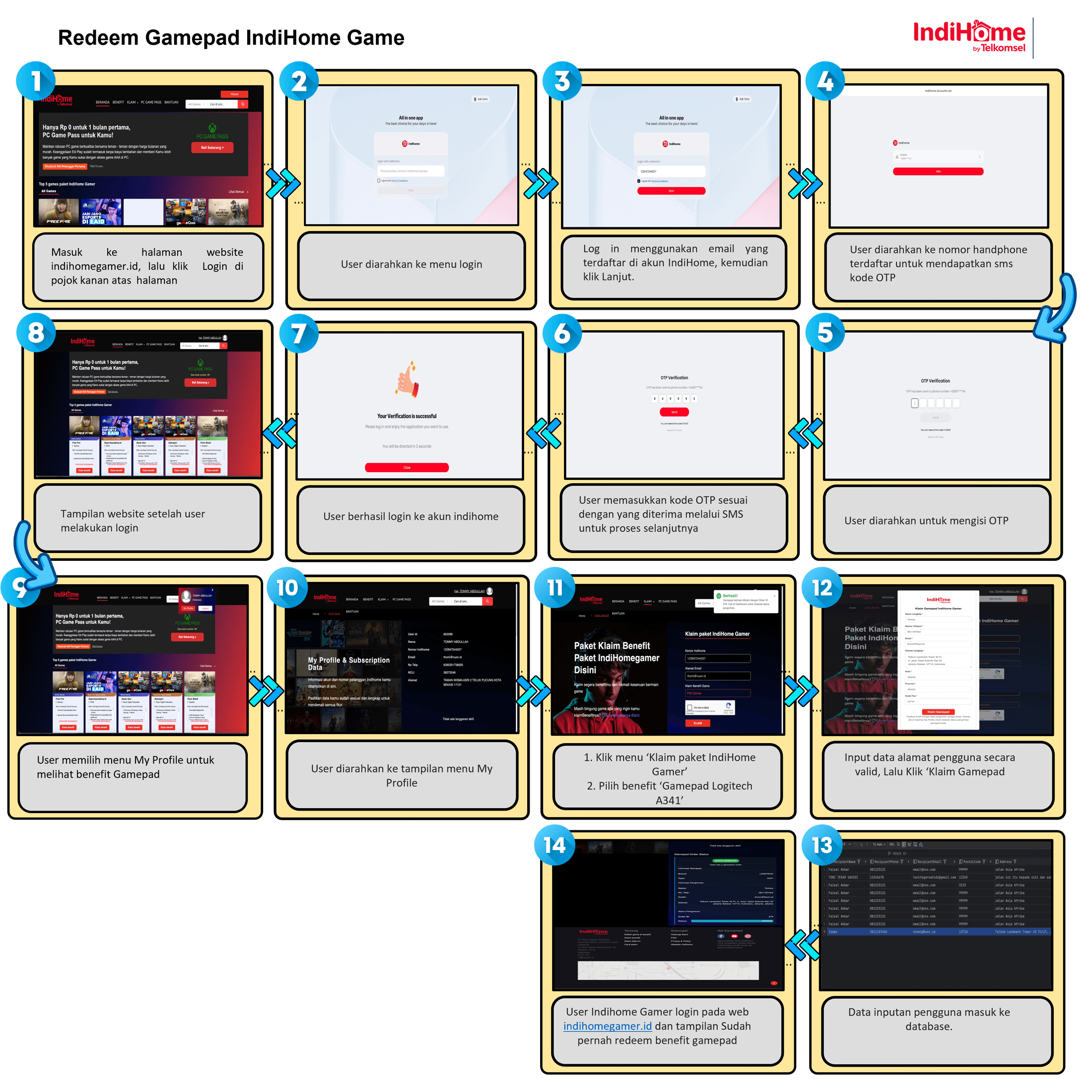
  1. Go to the indihomegamer.id website, then click Login in the top right corner of the page.
  2. Log in using the email registered to your IndiHome account, then click Continue.
  3. You'll receive an OTP code via SMS.
  4. Input the OTP code as received via SMS to proceed.
  5. After logging into your IndiHome account, select the My Profile menu to view the Gamepad benefit.
  6. Click the “Claim IndiHome Gamer package” menu and select the “Logitech F310 Gamepad” benefit.
  7. Enter valid user address details, then click “Claim Gamepad”. Log in to the indihomegamer.id website and you’ll see a display confirming that you’ve redeemed the gamepad benefit.
catchplay
Game voucher benefit
icon-minus icon-plus
Game voucher benefit
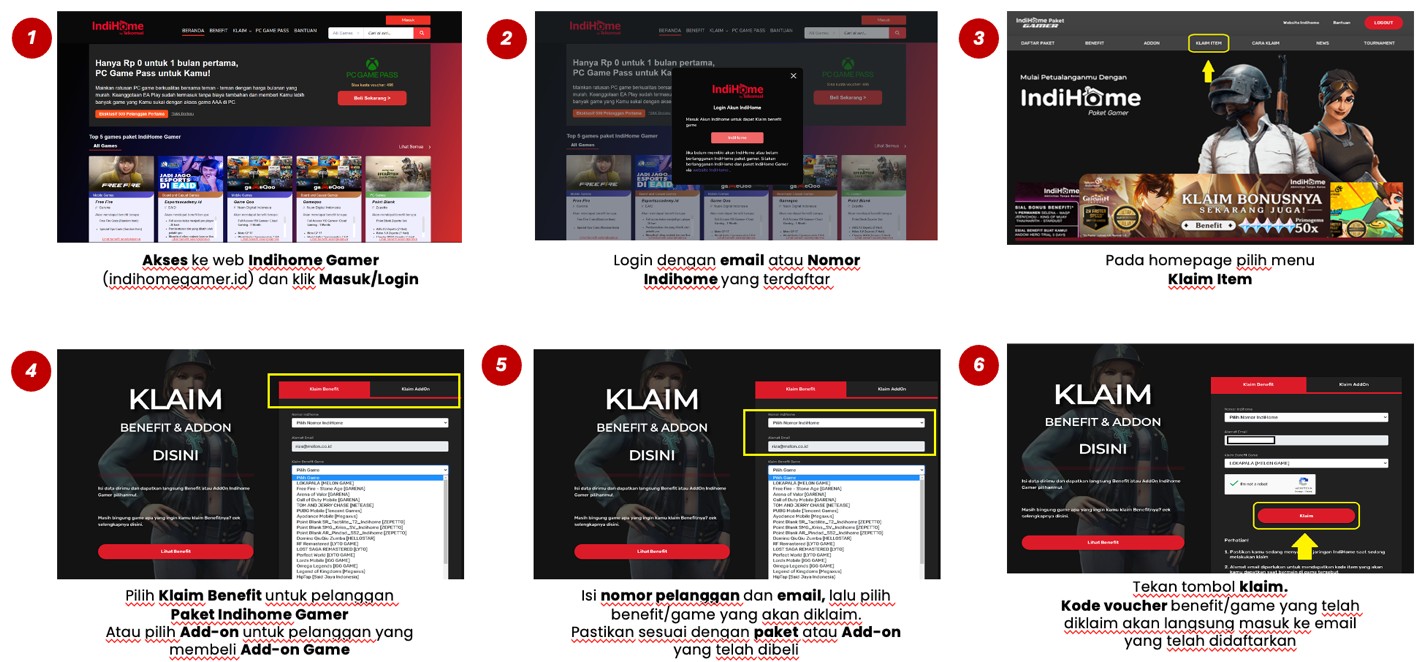
  1. Access the IndiHome Gamer website here and click "Login."
  2. Log in with the email address registered during IndiHome registration or your IndiHome number.
  3. On the main page of the website, select the "Claim Item" menu.
  4. In the "Claim Item" menu, select "Claim Benefit."
  5. Enter your IndiHome number and email address, then select the benefit/game you wish to claim. Ensure it matches the add-on service you purchased.
  6. Press the "Claim" button. The voucher code for the selected benefit/game will be sent directly to your registered email address.
catchplay

How to access VAS apps on IndiHome

Fita
icon-minus icon-plus
Fita
catchplay

How to watch via IndiHome TV (STB)

  1. On the left side of the TV screen, select the “Apps” menu.
  2. Swipe right on the “All Apps” row, select the Fita application and click OK.
  3. You will be logged in automatically.
  4. If you have subscribed, Fita services can be enjoyed immediately.


How to watch via Mobile App

  1. Log in to Fita application.
  2. Log in with a mobile number starting with 08 (xxxxxxxxxx) registered with IndiHome.
  3. Enter the OTP code sent via SMS.
  4. Fita services can now be enjoyed.
Kuncie
icon-minus icon-plus
Kuncie

Kuncie access benefit

  1. Register on the Kuncie website here and enter your IndiHome ID, full name, email address, and mobile phone number.
  2. Log in to the Kuncie website using your mobile phone number and enter the OTP.
  3. You will be directed to the main page. You can access six main features: Kuncie MOOC, Regular High School Tryouts, Ilmupedia Aptitude Tests, Ministry of Education and Culture E-books, UTBK Tryouts, and CPNS & BUMN Tests.
  4. Complete information regarding accessing Kuncie services can be accessed at the following link.

Additional Information