ALL MENU

Payment Methods

Choose your payment method

MyTelkomsel App
icon-minus icon-plus
MyTelkomsel App

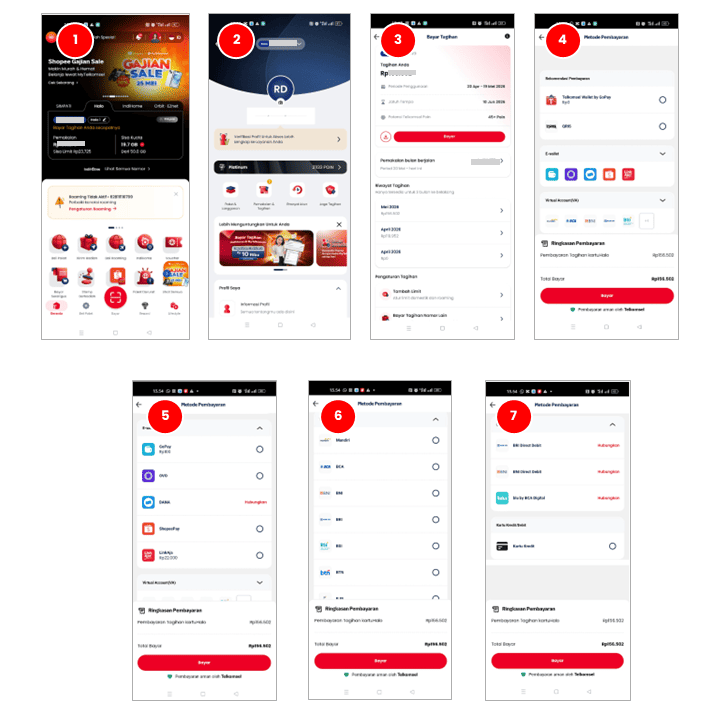
  1. Open the MyTelkomsel App. 
  2. Select "Account." 
  3. Select the "Usage & Bills" feature. 
  4. Tap "Pay." 
  5. Select an available payment method. 
  6. Double-check the billing details. 
  7. Tap "Pay." 
  8. Payment is successful. 
MyTelkomsel Web
icon-minus icon-plus
MyTelkomsel Web

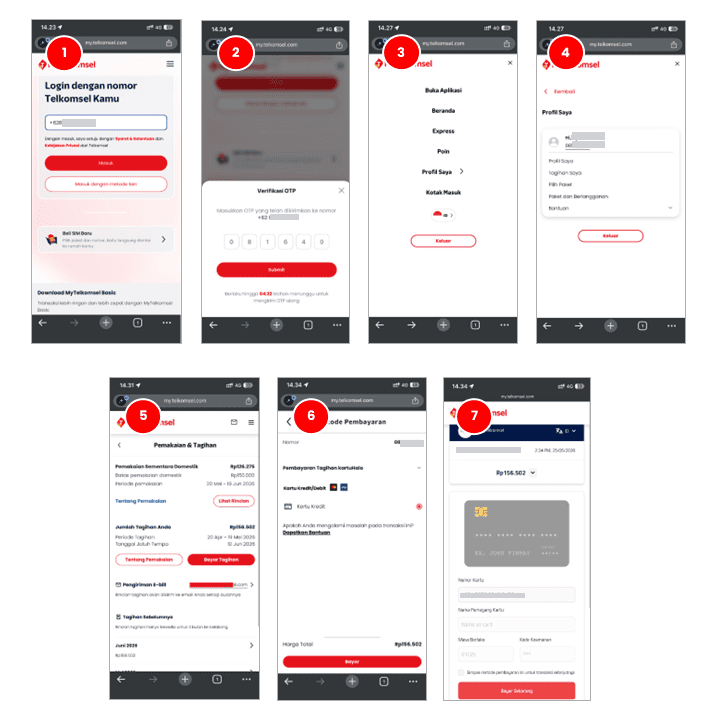
  1. Visit MyTelkomsel.com. 
  2. Enter your Telkomsel Halo number and the OTP code sent via SMS. 
  3. Go to "My Profile." 
  4. Select the "My Bills" menu. 
  5. Your bill amount will appear, along with the billing period and payment due date. Click "Pay Bill." 
  6. Select your payment method (Debit/Credit). 
  7. Then click "Pay." 
  8. Enter your Debit/Credit Card information. 
  9. Then click "Pay Now." 
  10. Your payment is successful. 
GraPARI
icon-minus icon-plus
GraPARI
  1. Visit the nearest GraPARI in your area. 
  2. Inform the officer that you need to pay your Telkomsel Halo bill. 
  3. Show your Telkomsel Halo number. 
  4. The officer will assist you with the payment. 
  5. Make the payment according to the stated amount. 
  6. The officer will provide you with the receipt. 
  7. Payment is successful. 
GraPARI Express
icon-minus icon-plus
GraPARI Express

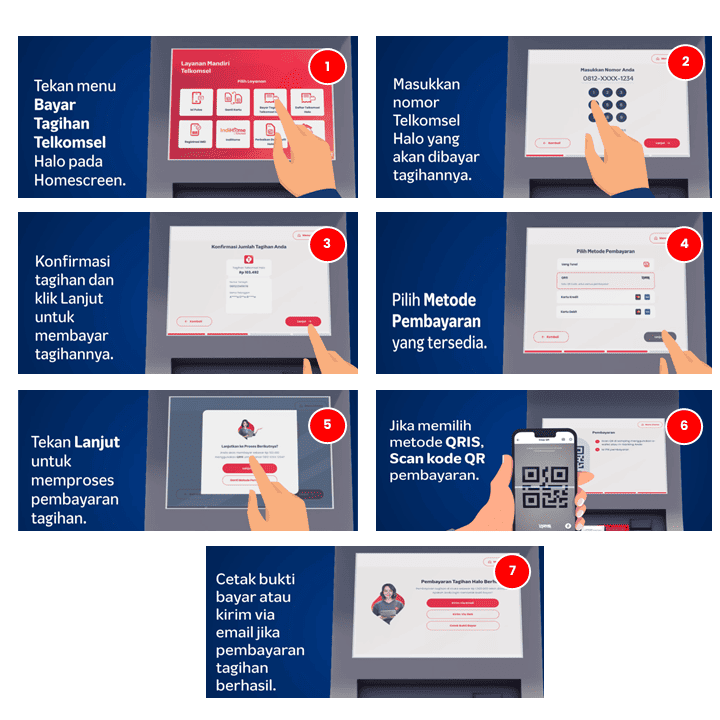
  1. Select the "Pay Telkomsel Halo Bills" menu on the home screen. 
  2. Enter the Telkomsel Halo number you wish to pay, tap "Continue." 
  3. Confirm the bill and click "Continue" to pay. 
  4. Select an available payment method. 
  5. Confirm the bill and click "Continue" to process the bill payment. 
  6. Print the payment receipt or send it via email if the bill payment is successful. 
  7. Ensure that the notification and payment receipt are received. 
  8. The payment is successful. 
Veronika
icon-minus icon-plus
Veronika

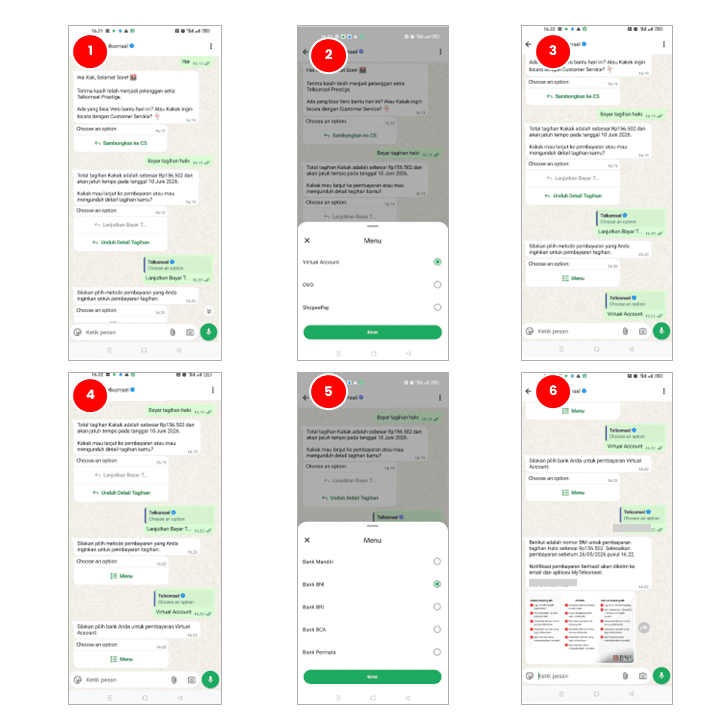
  1. Visit the Veronika Virtual Assistant via Chat, WhatsApp, the MyTelkomsel App, the website, Facebook, or Telegram. 
  2. For example, use the Veronika Virtual Assistant via WhatsApp. 
  3. Type "Hi." 
  4. Type "Pay Bill Hello." 
  5. Select "Continue to Pay Bill." 
  6. Then, select a payment method. 
  7. Select the bank name to receive the virtual payment number. 
  8. Veronika will provide the bill amount and the virtual payment number for the selected bank. 
  9. The payment is successful. 
LinkAja
icon-minus icon-plus
LinkAja

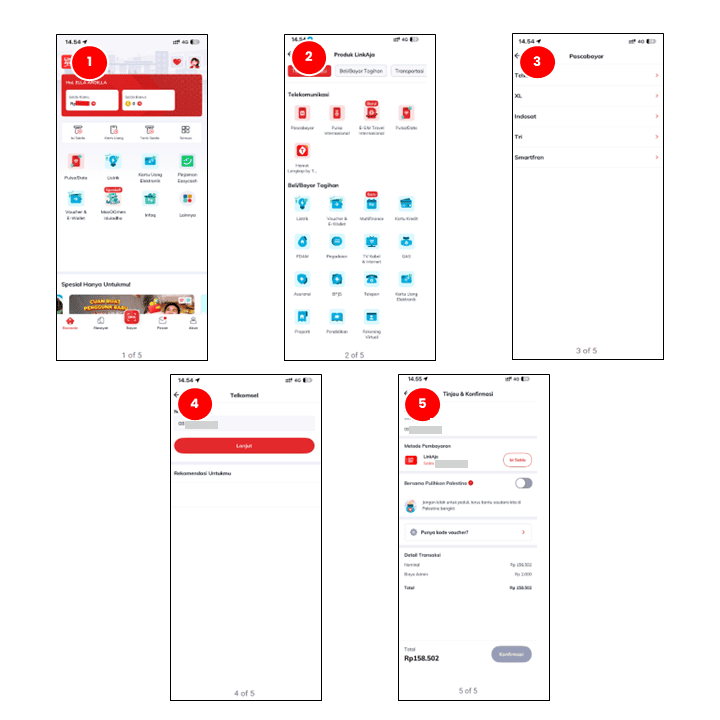
  1. Open the LinkAja app. 
  2. Go to the "Other" menu. 
  3. Select "Postpaid." 
  4. Select "Telkomsel." 
  5. Then enter the phone number you want to pay for. 
  6. Review and confirm the phone number. 
  7. Tap "Confirm" to proceed with the payment. 
  8. Enter your LinkAja PIN. 
  9. The transaction is processed. Tap "Transaction Details" if necessary. 
  10. If the payment process is successful, tap "Finish." 
  11. The payment is successful. 
Finpay
icon-minus icon-plus
Finpay

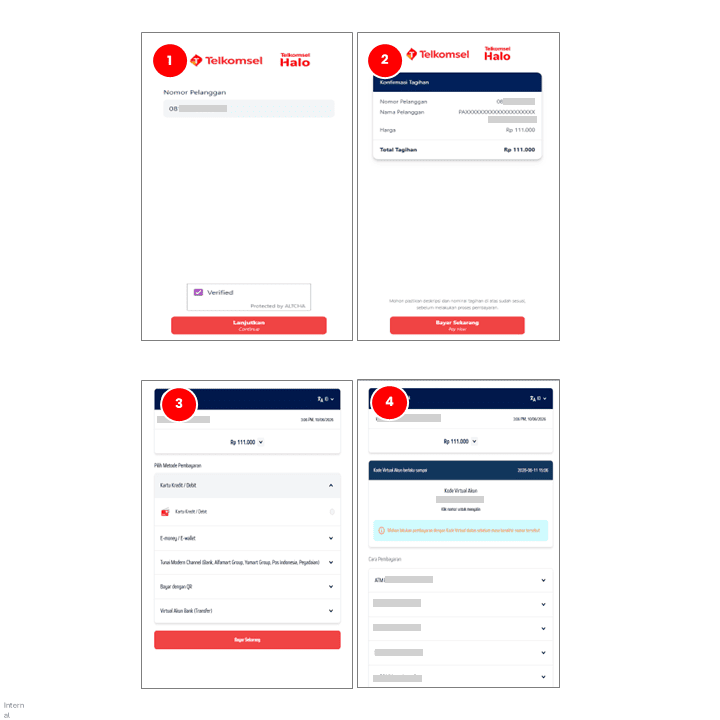
  1. Access the Finpay payment link via the Finpay landing page using the button below. 
  2. Enter your Halo number and check the captcha, then tap "Continue." 
  3. Verify the bill amount that appears, then tap "Pay Now." 
  4. Select an available payment option. 
  5. Complete the payment process. 
  6. Payment is successful. 
GoPay
icon-minus icon-plus
GoPay

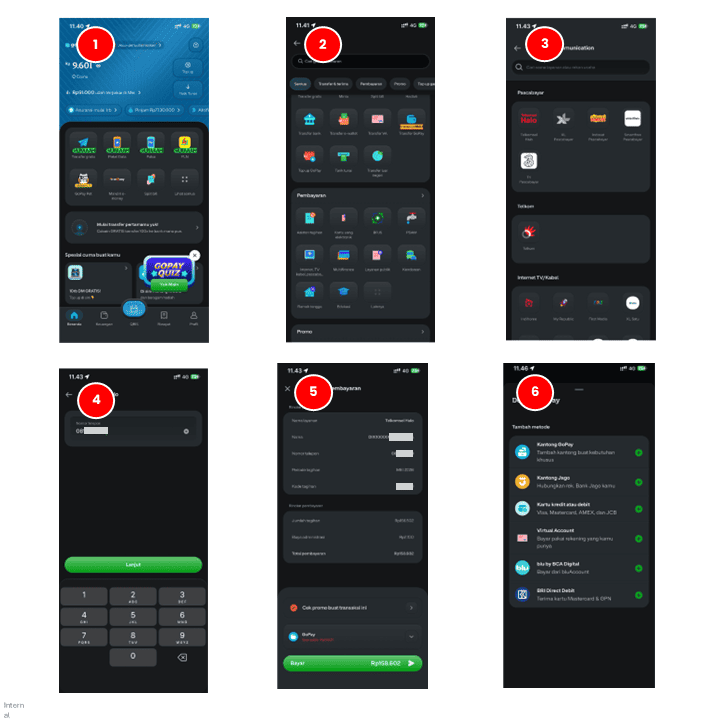
  1. Open the "GoPay" app. 
  2. Tap the "View All" menu. 
  3. Select the “Payments” menu, then click "Internet, Cable TV, Postpaid." 
  4. Select "Telkomsel Halo" menu. 
  5. Enter your Telkomsel Halo number. 
  6. Tap "Continue." 
  7. Confirm payment. 
  8. Select an available payment method. 
  9. Tap the "Pay" button. 
  10. Payment is successful. 
Shopee
icon-minus icon-plus
Shopee

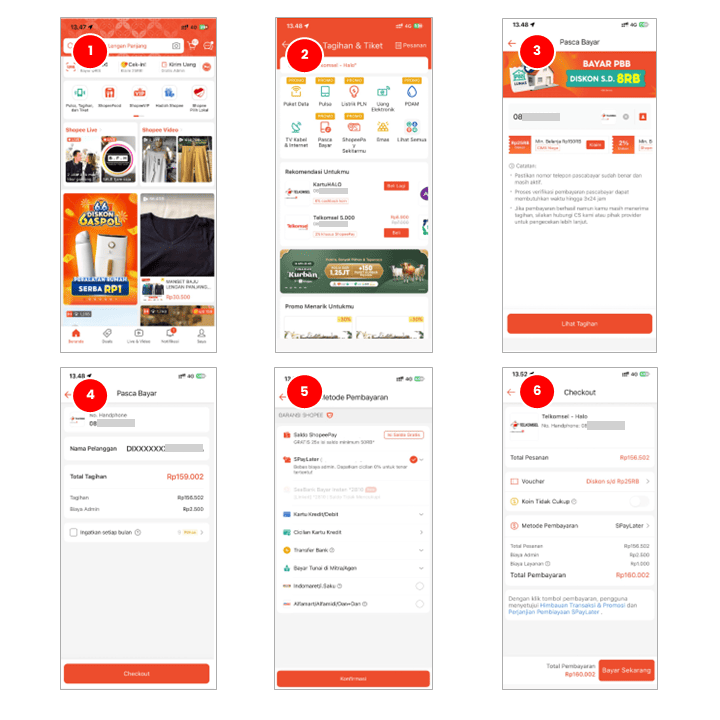
  1. Open the "Shopee" app. 
  2. Select the "Credit, Bills, and Tickets" menu. 
  3. Select the "Postpaid" menu and enter your Telkomsel Halo number. 
  4. Tap "View Bill." 
  5. Tap "Checkout." 
  6. Choose a payment method. Available payment methods include ShopeePay, SPaylater, Credit/Debit Card, Credit Card Installments, Bank Transfer, Cash Payment with Partners/Agents, Indomaret/i.Saku, and Alfamart/Alfamidi/Dan+Dan. 
  7. Tap "Pay Now" and the system will immediately process the bill payment. 
  8. Payment is successful. 
DANA
icon-minus icon-plus
DANA

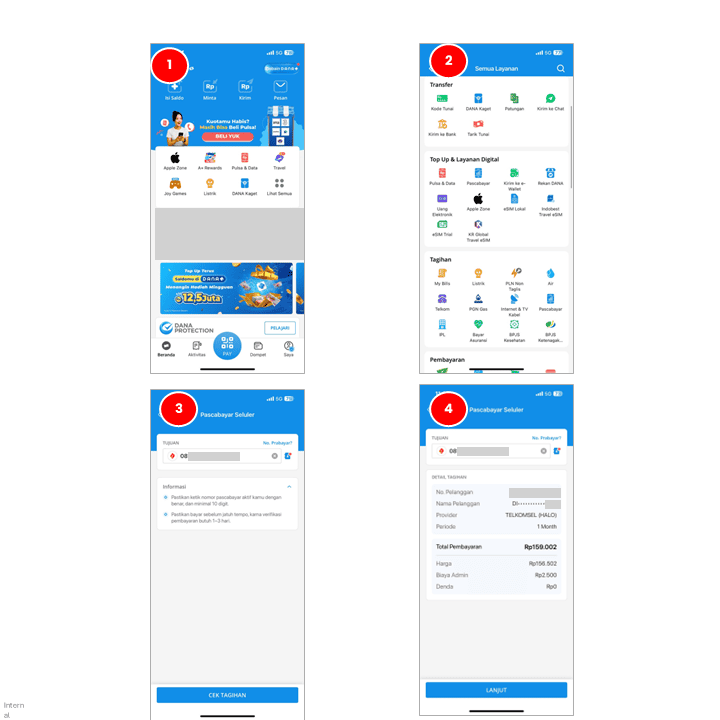
  1. Open the "DANA" app. 
  2. Tap the "View All" menu. 
  3. Select the "Bills" menu. 
  4. Select the "Postpaid" menu. 
  5. Then enter your Telkomsel Halo number. 
  6. Tap "Check Bill." 
  7. The bill details and total payment will appear. 
  8. Tap "Continue." 
  9. Tap the "Pay" button. 
  10. The payment is successful. 
Blibli
icon-minus icon-plus
Blibli

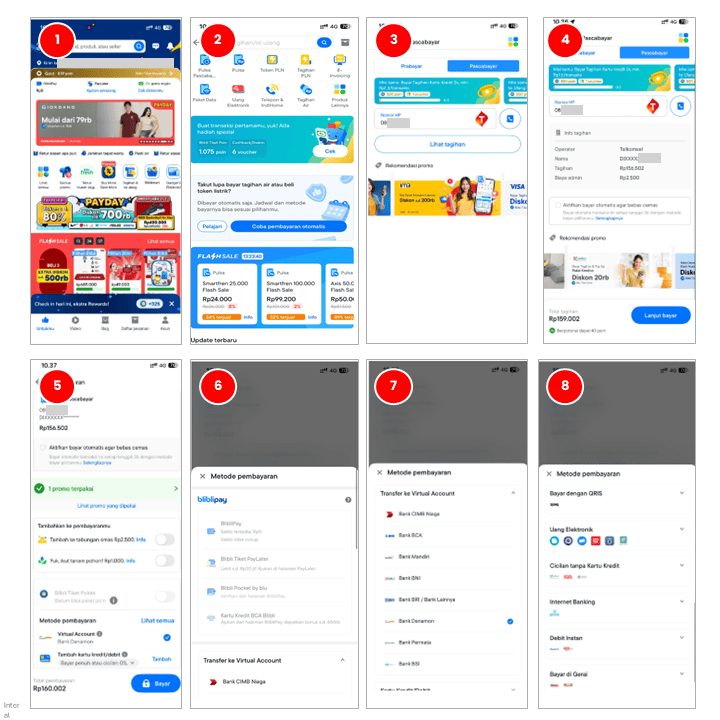
  1. Open the Blibli app. 
  2. Select the "Bills & Top-Up" menu. 
  3. Select the "Postpaid Credit" menu. 
  4. Select the "Postpaid" tab and enter your Telkomsel Halo number. 
  5. Tap "View Bill". 
  6. Tap "Continue to Pay." 
  7. Select the payment method provided and click "Pay." 
  8. Payment is successful. 
OVO
icon-minus icon-plus
OVO

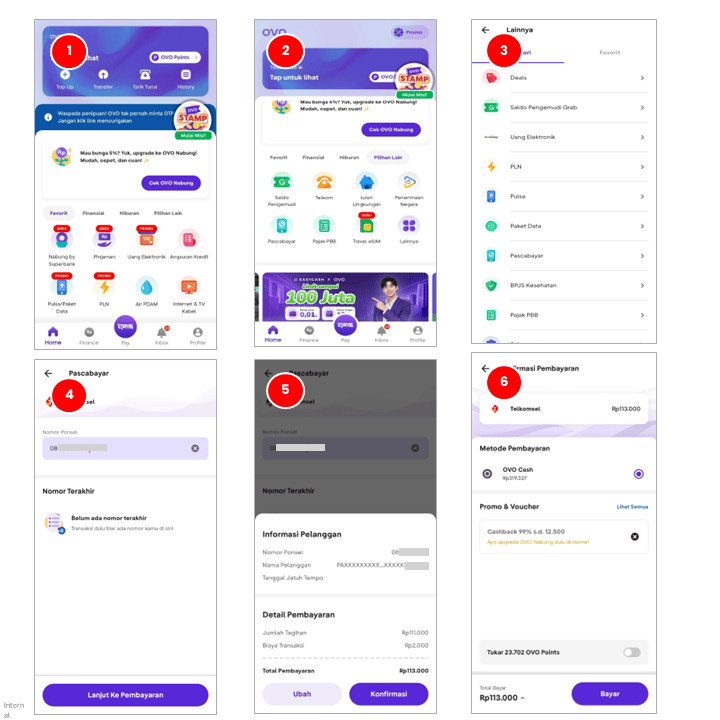
  1. Open the OVO app. 
  2. Go to the "Other Options" menu > "Postpaid." 
  3. In the "Postpaid" category, select the "Postpaid" menu. 
  4. Enter the Halo number you wish to pay for. 
  5. Tap "Confirm" in the Customer Information section. 
  6. Enter the bill amount and click "Pay." 
  7. Enter your OVO PIN. 
  8. Payment is successful. 
Bank Mandiri
icon-minus icon-plus
Bank Mandiri

Payment via Livin’ Mandiri app
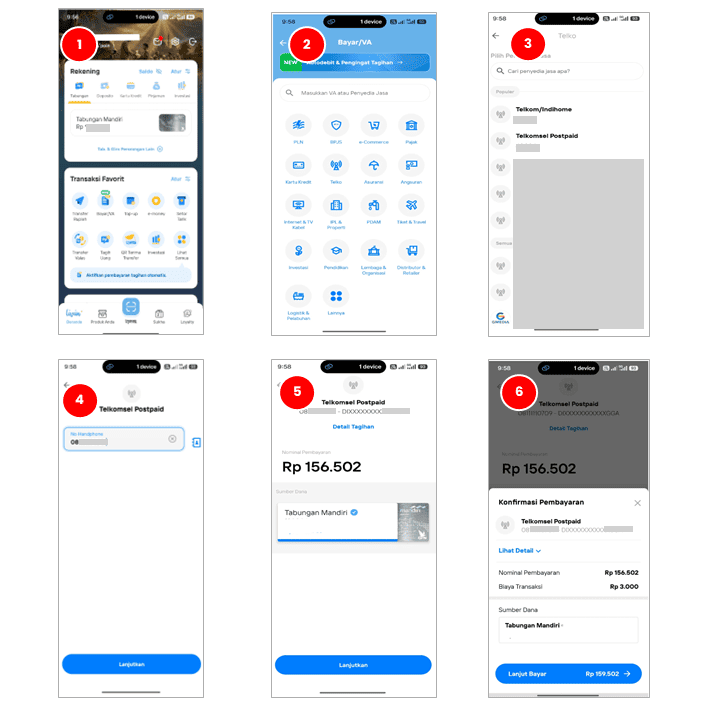
 

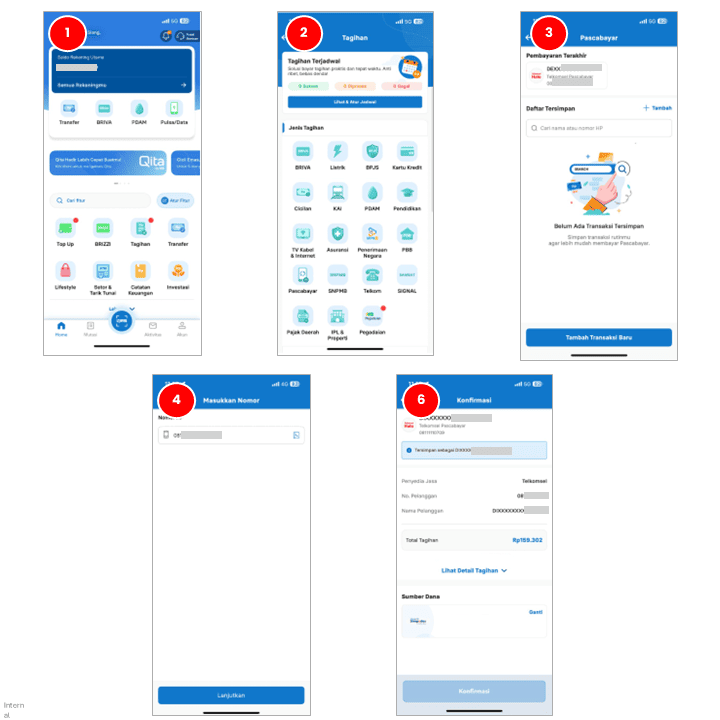
  1. Open the Livin Mandiri app. 
  2. Go to the "Pay/VA" menu. 
  3. Select the "Telco" menu. 
  4. Select the "Telkomsel Postpaid" service provider. 
  5. Enter your Telkomsel Halo number and click "Continue." 
  6. Confirm payment. 
  7. Enter your PIN and click "OK." 
  8. Payment is successful. 

Payment via ATM

  1. Insert your ATM card. 
  2. Enter your PIN. 
  3. Select the "Pay/Buy" menu. 
  4. Select the "Phone/Mobile" menu. 
  5. Enter your Telkomsel Halo number. 
  6. Press "Correct." 
  7. Confirm the bill by pressing "Correct." 
  8. Payment is successful. 
Bank BNI
icon-minus icon-plus
Bank BNI

Payment via Wondr app 

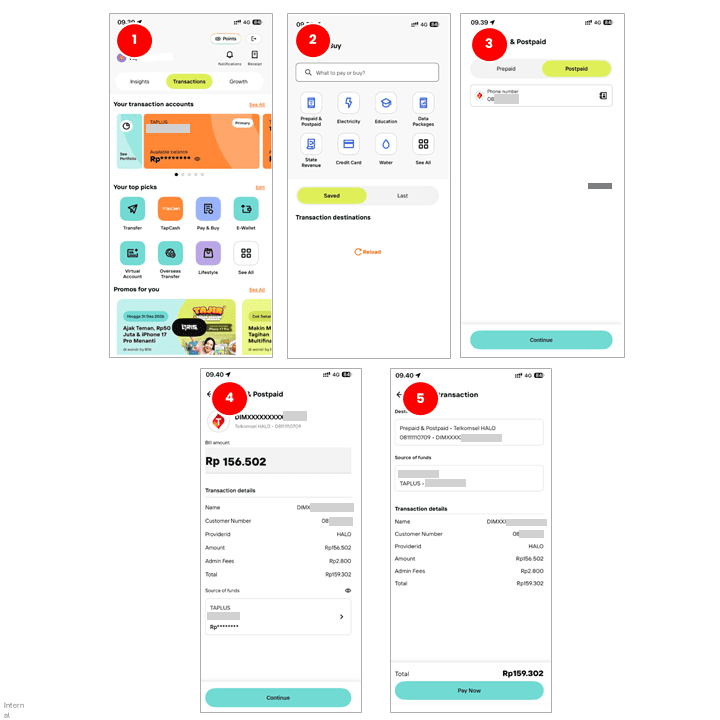
  1. Open the Wondr by BNI app. 
  2. Select the "Purchase & Payment" menu. 
  3. Select "Prepaid & Postpaid." 
  4. Select the "Postpaid" tab and enter your Telkomsel Halo number. 
  5. Click "Continue." 
  6. Confirm payment. 
  7. Enter your PIN and click "OK." 
  8. Payment is successful. . 

Payment via ATM 

  1. Insert your ATM card.  
  2. Enter your PIN.  
  3. Select the "Other" menu.  
  4. Select the "Payment" menu.  
  5. Select the “Phone/Mobile” menu. 
  6. Select "Telkomsel" and “Halo Postpaid.” 
  7. Enter your Telkomsel Halo number and press “Yes.” 
  8. Confirm the bill by pressing "Correct."  
  9. Payment is successful. 
Bank BRI
icon-minus icon-plus
Bank BRI

Payment via BRImo app 

  1. Open the BRImo Mobile Banking app. 
  2. Select the "Bills" menu. 
  3. Select the "Postpaid" menu. 
  4. Then add a transaction by entering your "Telkomsel Halo" number. 
  5. Tap "Continue." 
  6. Confirm payment. 
  7. Enter your PIN and make the payment. 
  8. Payment is successful. 

Payment via ATM 

  1. Insert your ATM card.  
  2. Enter your PIN.  
  3. Select the "Other Transactions" menu.  
  4. Select the "Payment" menu.  
  5. Select the “Cellular” menu. 
  6. Select "Telkomsel." 
  7. Enter your Telkomsel Halo number. 
  8. Press “Correct.”  
  9. Confirm your bill by pressing “Yes.” 
  10. Payment is successful. 
Bank BCA
icon-minus icon-plus
Bank BCA

Payment via BCA Mobile 

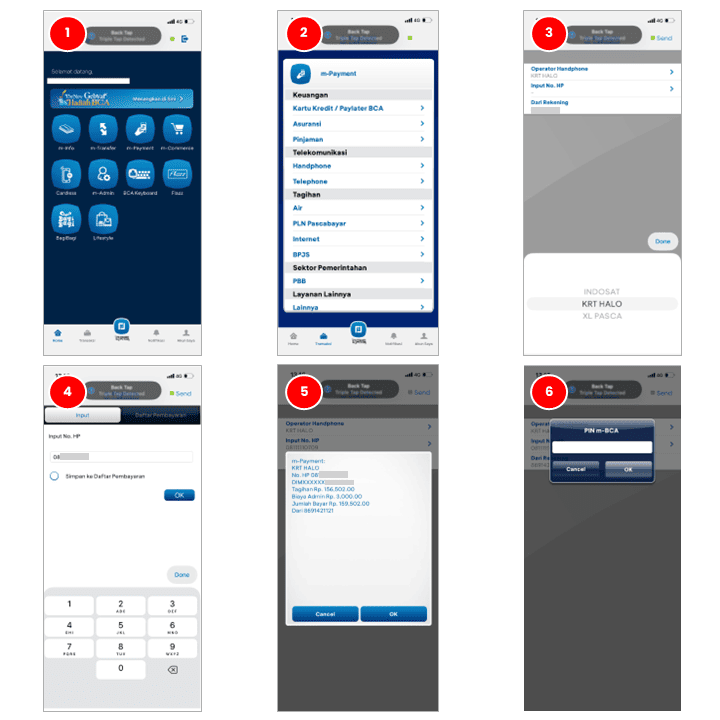
  1. Open the BCA Mobile app. 
  2. Select the "m-Payment" menu. 
  3. Select the "Telecommunications" menu. 
  4. Then select "Mobile Phone". 
  5. Select "Mobile Operator - KRT HALO". 
  6. Enter your Telkomsel Halo number and tap "OK." 
  7. Confirm the payment and tap "Send." 
  8. Enter your PIN and tap "OK.” 
  9. The payment was successful. 

Payment via myBCA 

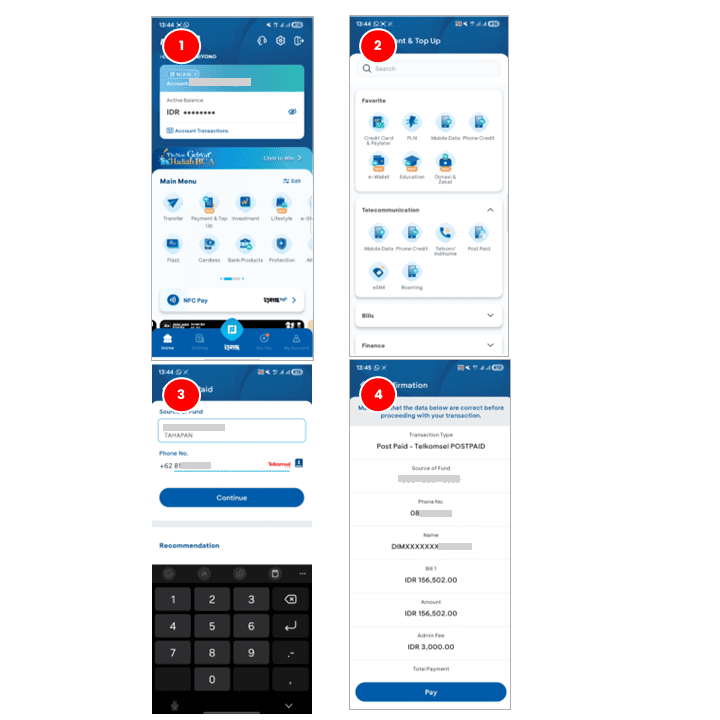
  1. Open the myBCA app. 
  2. Select the "Payment & Top Up" menu. 
  3. Tap the "Postpaid" menu. 
  4. Enter your Telkomsel Halo number and tap "Continue." 
  5. Confirm the payment and tap "Pay." 
  6. Enter your PIN and tap "OK." 
  7. Payment is successful. 

Payment via ATM 

  1. Insert your ATM card. 
  2. Enter your PIN. 
  3. Select the "Other Transactions" menu. 
  4. Select the "Payment" menu. 
  5. Select "Telephone/Mobile Phone." 
  6. Select "Telkomsel." 
  7. Enter your Telkomsel Halo number. 
  8. Press "Correct." 
  9. Confirm the bill by pressing "Yes." 
  10. Payment is successful. 

Payment via KlikBCA 

  1. Open KlikBCA. 
  2. Select the "Payment" menu. 
  3. Select the "Mobile" menu. 
  4. Select "Operator - Telkomsel". 
  5. Enter your Telkomsel Halo number. 
  6. Click "Continue". 
  7. Confirm payment. 
  8. Enter your password and click "Send". 
  9. Payment is successful. 
Tokopedia
icon-minus icon-plus
Tokopedia

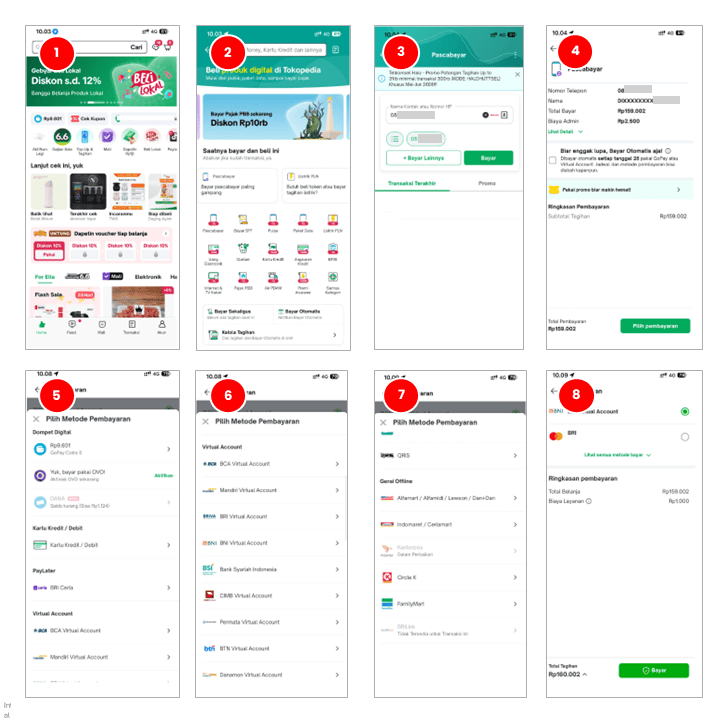
  1. Open the "Tokopedia" app. 
  2. Select the "Top-Up & Bills" menu. 
  3. Select the "Postpaid" menu. 
  4. Enter your Telkomsel Halo number. 
  5. Then tap "Pay." 
  6. Tap "Select Payment" to proceed with payment. Available payment methods include digital wallets, credit/debit cards, Paylater, Virtual Accounts, Instant Debit, Instant Payments, and Offline Outlets. 
  7. Tap "Pay," and the system will immediately process the bill payment. 
  8. Payment is successful. 
Alfamart
icon-minus icon-plus
Alfamart
  1. Visit the nearest Alfamart in your area. 
  2. Inform the Alfamart cashier that you want to pay your Telkomsel Halo bill. 
  3. Provide your Telkomsel Halo number to the cashier. 
  4. The Alfamart cashier will process the payment by verifying the data and information you provided. 
  5. If the data matches, you can pay your Telkomsel Halo bill using cash or a non-cash method. 
  6. The cashier will provide a receipt as proof of payment. 
  7. Payment is successful. 
Indomaret
icon-minus icon-plus
Indomaret
  1. Visit the nearest Indomaret in your area. 
  2. Inform the Indomaret cashier that you want to pay your Telkomsel Halo bill. 
  3. Provide your Telkomsel Halo number to the cashier. 
  4. The Indomaret cashier will process the payment by verifying the data and information you provided. 
  5. If the data matches, you can pay your Telkomsel Halo bill using cash or a non-cash method. 
  6. The cashier will provide a receipt as proof of payment. 
  7. Payment is successful. 
Kantor Pos
icon-minus icon-plus
Kantor Pos
  1. Visit the nearest post office to your location. 
  2. Inform the post office clerk that you want to pay your Telkomsel Halo bill. 
  3. Provide your Telkomsel Halo number to the post office clerk. 
  4. The post office clerk will process the payment by verifying the data and information you provided. 
  5. If the data matches, you can pay your Telkomsel Halo bill in cash. 
  6. The post office clerk will provide you with proof of payment. 
  7. The payment is successful. 
Pegadaian
icon-minus icon-plus
Pegadaian
  1. Visit the nearest Pegadaian in your area. 
  2. Inform the Pegadaian employee that you want to pay your Telkomsel Halo bill. 
  3. Provide your Telkomsel Halo number to the employee. 
  4. The employee will process the payment by verifying the data and information you provided. 
  5. The employee will provide the payment receipt. 

  6. The payment is successful. 

Other Bank Partners
icon-minus icon-plus
Other Bank Partners

You can tap the button below for more information about other bank partners for Halo bill payment.